
This document provides detailed methods for the "use" and "connection" of external IP sound columns. If an external sound column is needed for on-site alarm broadcasting, please read this document carefully first.
If users need to connect an external sound column, they must meet two basic principles:
- Must purchase the IP sound column of the specified brand and model, otherwise it cannot be used;
- The IP sound column, AI BOX device, and the accessing computer must be on the same network, otherwise they cannot access each other and work normally.
Purchase of Sound Column
【JD.com】: Sound Column Purchase Link
【Note】: BH Protocol
Download of IP Sound Column Configuration Software
Please download the relevant configuration software before using the sound column.
- Link: Click here to jump
- Extraction code: 0000
Modify Sound Column Configuration
- The IP sound column must be in the same network as the AI BOX device and the accessing computer, otherwise configuration and binding cannot be done;
- Unzip the configuration software on the accessing computer, and find parrot-man-setup-2.4.0805-sip.exe in the folder;
- Double-click to open the running program;
- Click Search Devices to search for online sound columns (Please ensure the computer with the configuration program installed is on the same network as the sound column, otherwise the sound column cannot be found);
- Please record the IP address of the sound column;

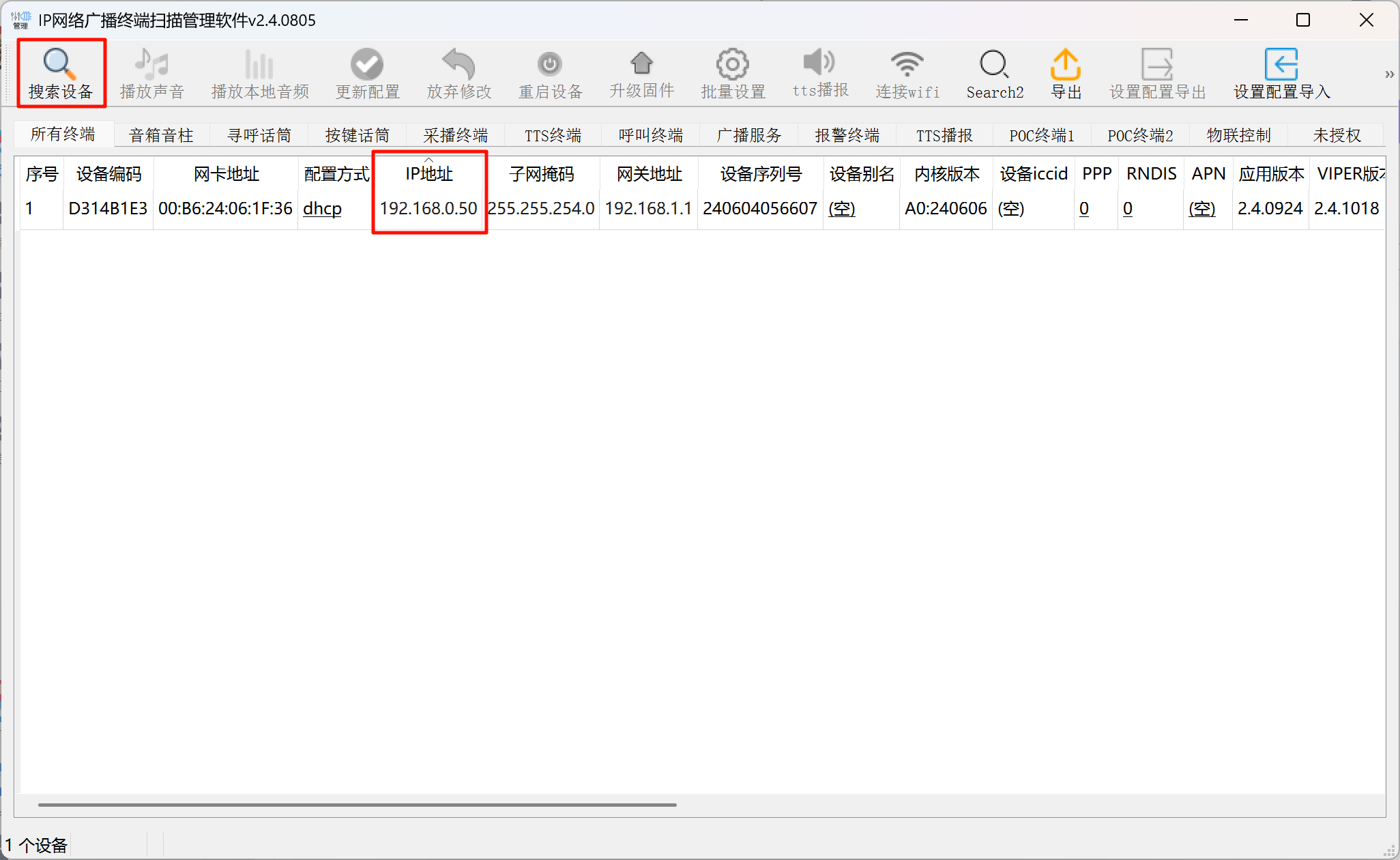
- There are two ways to configure the IP sound column's IP: dhcp and static. dhcp is to obtain an IP address automatically (the IP may change), and static is a static IP. You can select the configuration method from the drop-down list as needed. If you need to modify the IP address, click the IP address to make changes.
Configuration of AI BOX
- Log in to the background of the AI BOX device;
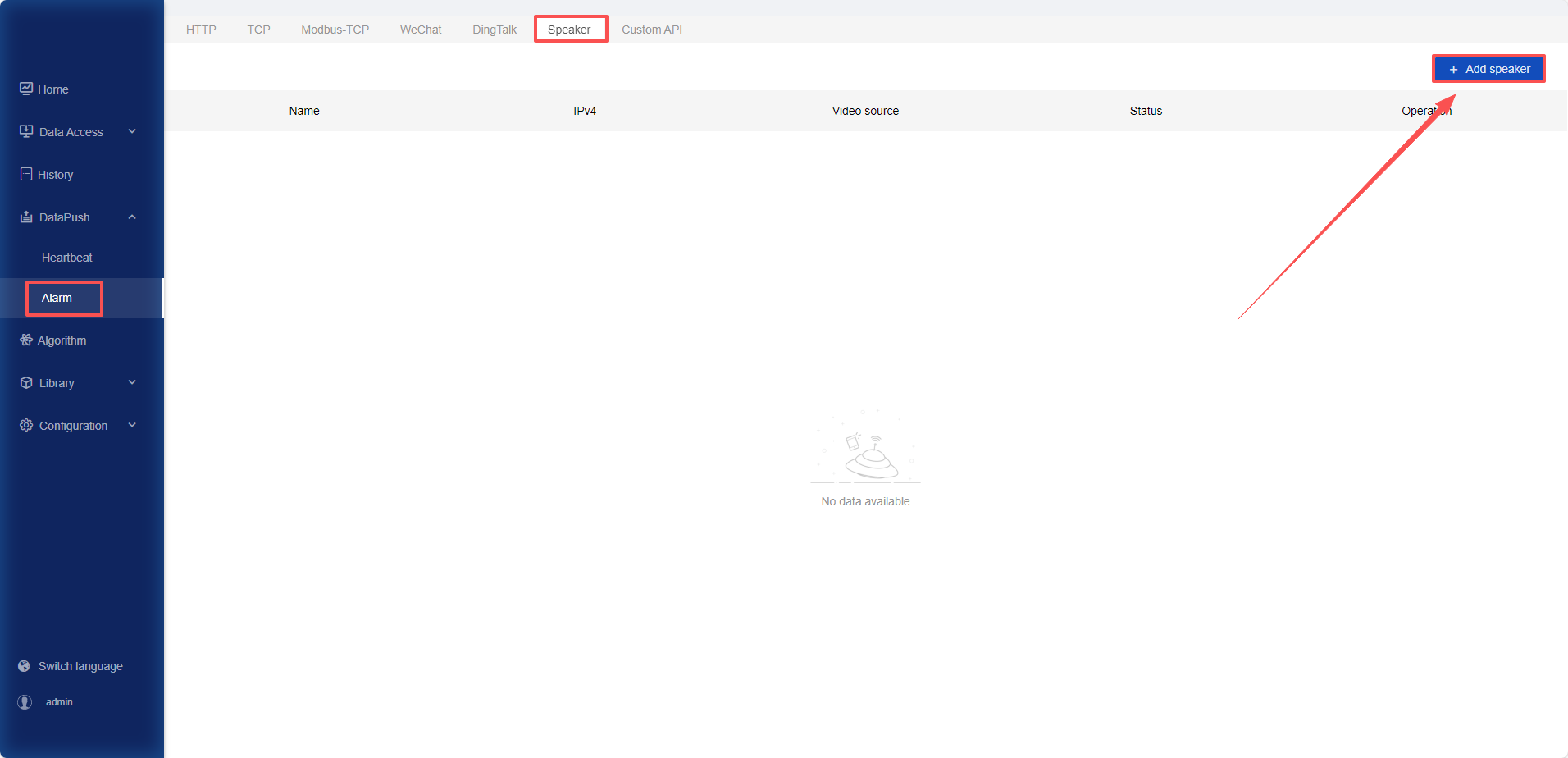
- On the device interface, click 【Data Push】-【Alarm】-【Sound Column】 tab in turn to enter the sound column management page;
- Click the 【Add Sound Column】 button;

- Fill in the sound column name, sound column IP address, volume, and broadcasting times; (Prompt sound: the prefix audio before broadcasting the alarm language)
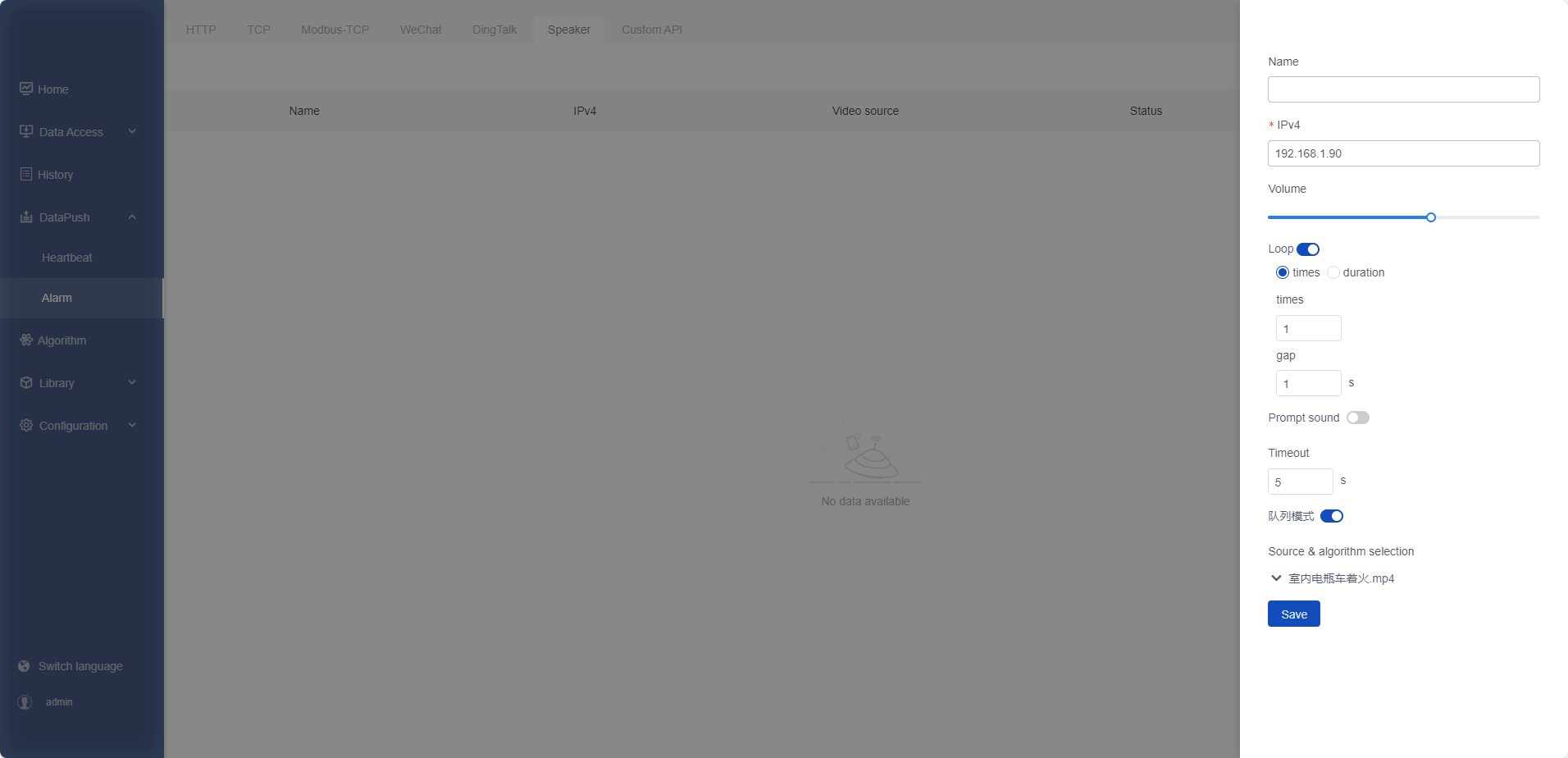
- The enabled cameras or video streams will automatically appear under "Select Video Source Algorithm";
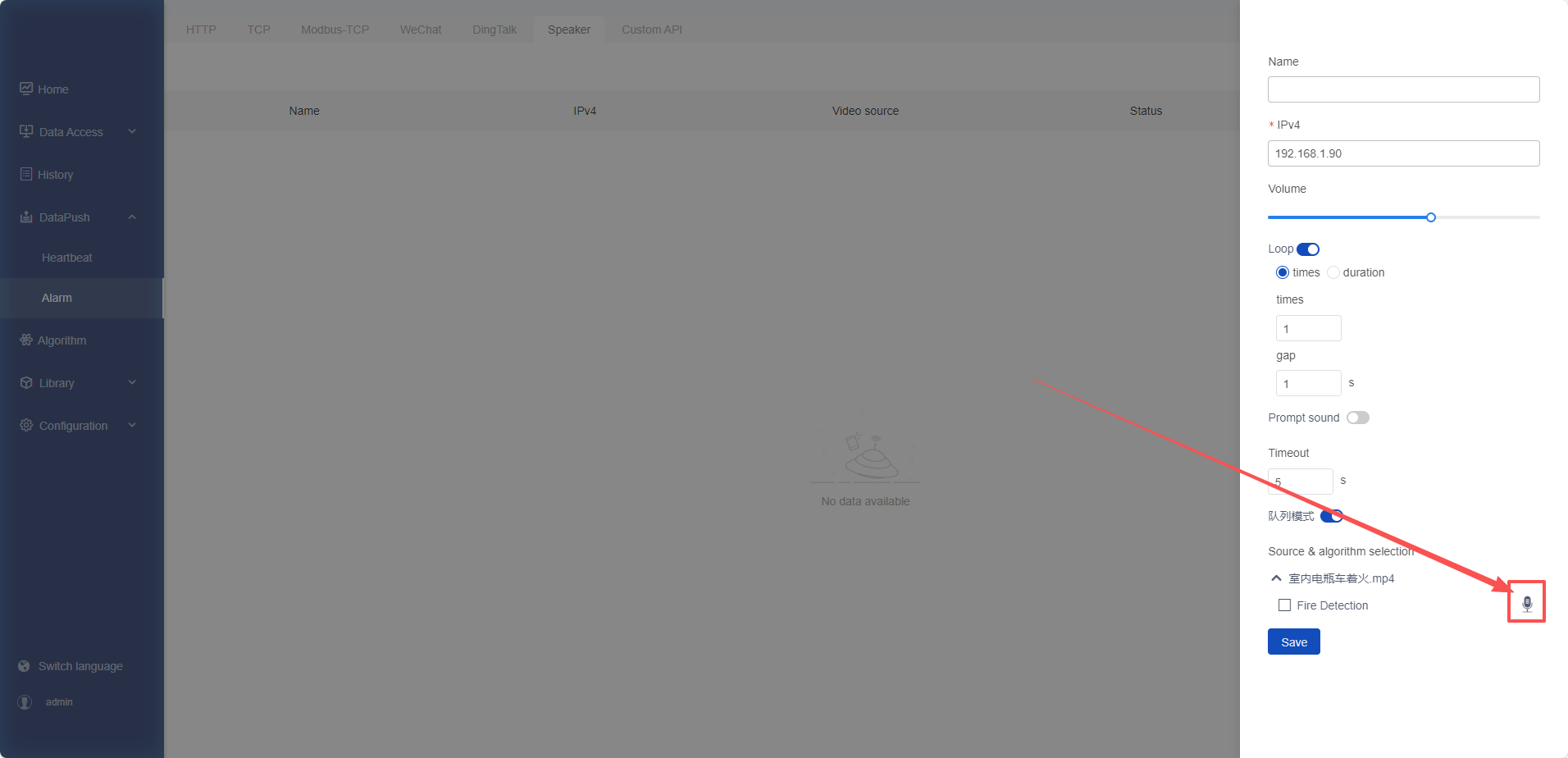
- Before using the sound column, you need to set the relevant alarm audio first. Select the algorithm to be configured and click the 【Microphone】 icon behind it;
- For the alarm voice, you can choose "Generate" or "Upload". In the generate mode, set the voice content by entering text; in the upload mode, set the voice content by uploading an MP3 file;
- Take generation as an example here. After confirming the text, click the 【Generate】 button. After listening and confirming it is okay, click the 【Complete】 button;
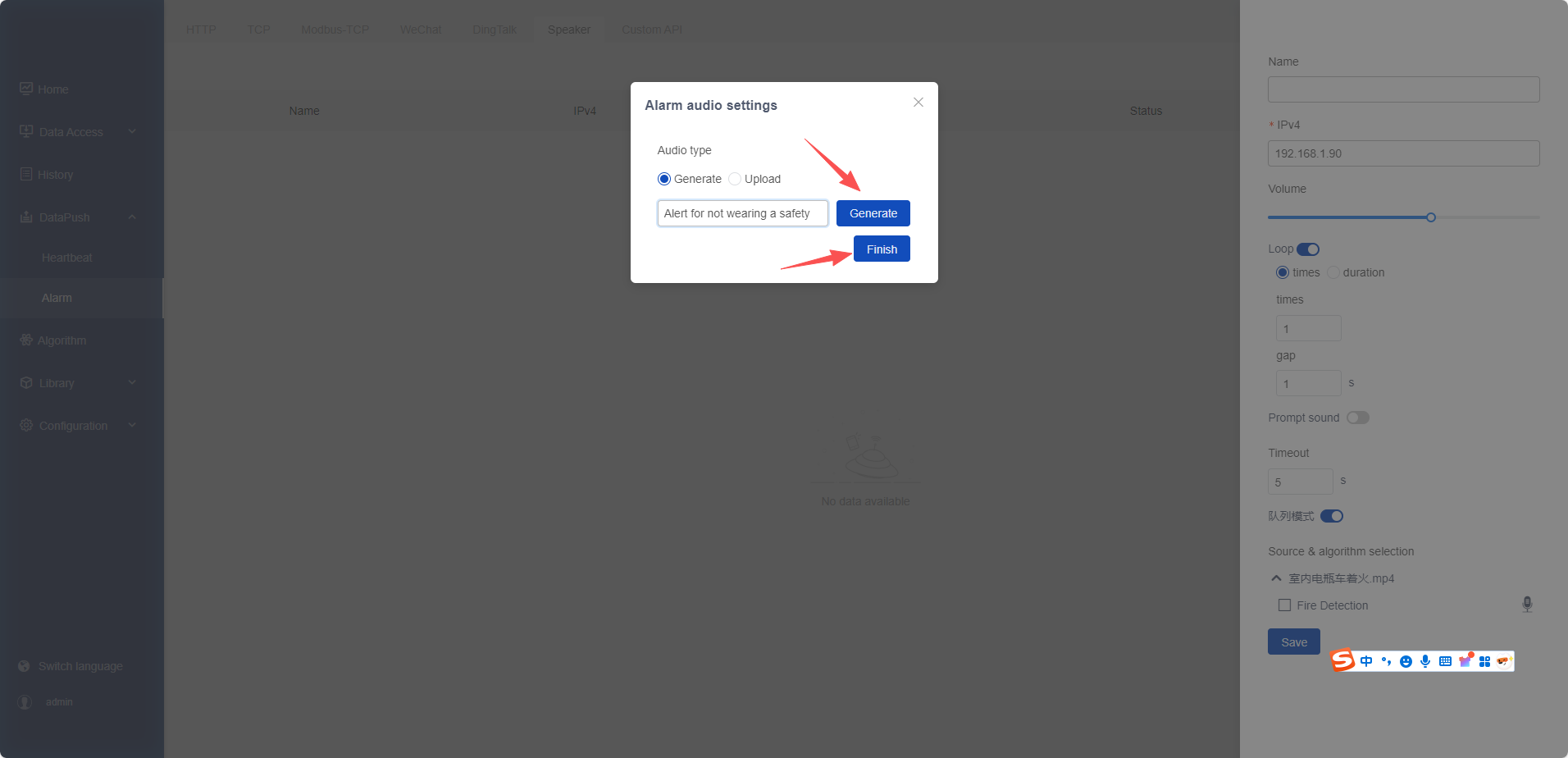
- Click the 【Playback】 button next to the microphone to listen to the alarm voice content. The playback button will only appear for algorithms with completed alarm content settings;
- 【Check】 the algorithm and click 【Save】.
- So far, all configurations are completed. When the bound algorithm generates an alarm, the IP sound column will automatically start voice broadcasting.
回复